Using ClickUp's Planner Tool
ClickUp's planner is a personal scheduling tool that lets you block out focus time for tasks.
Project managers should encourage team members to fill out their planner, so that we get visibility into what team members are prioritizing. When team members need to meet, they should schedule time via Planner, so that tasks can be attached as discussion items.
Customizing Planner
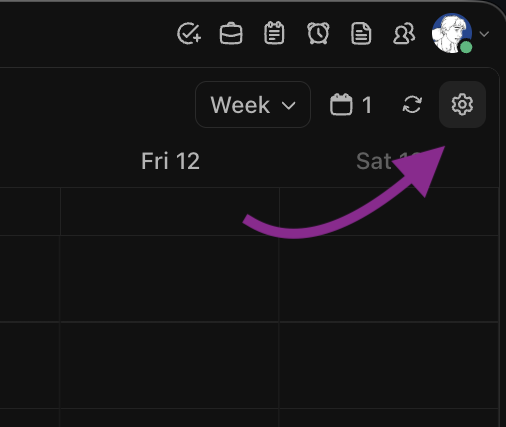
Planner settings are a bit difficult to find if you don't know where to look. Click the cog icon in the top right corner while in the planner view.
Integrating planner with your Google Calendar
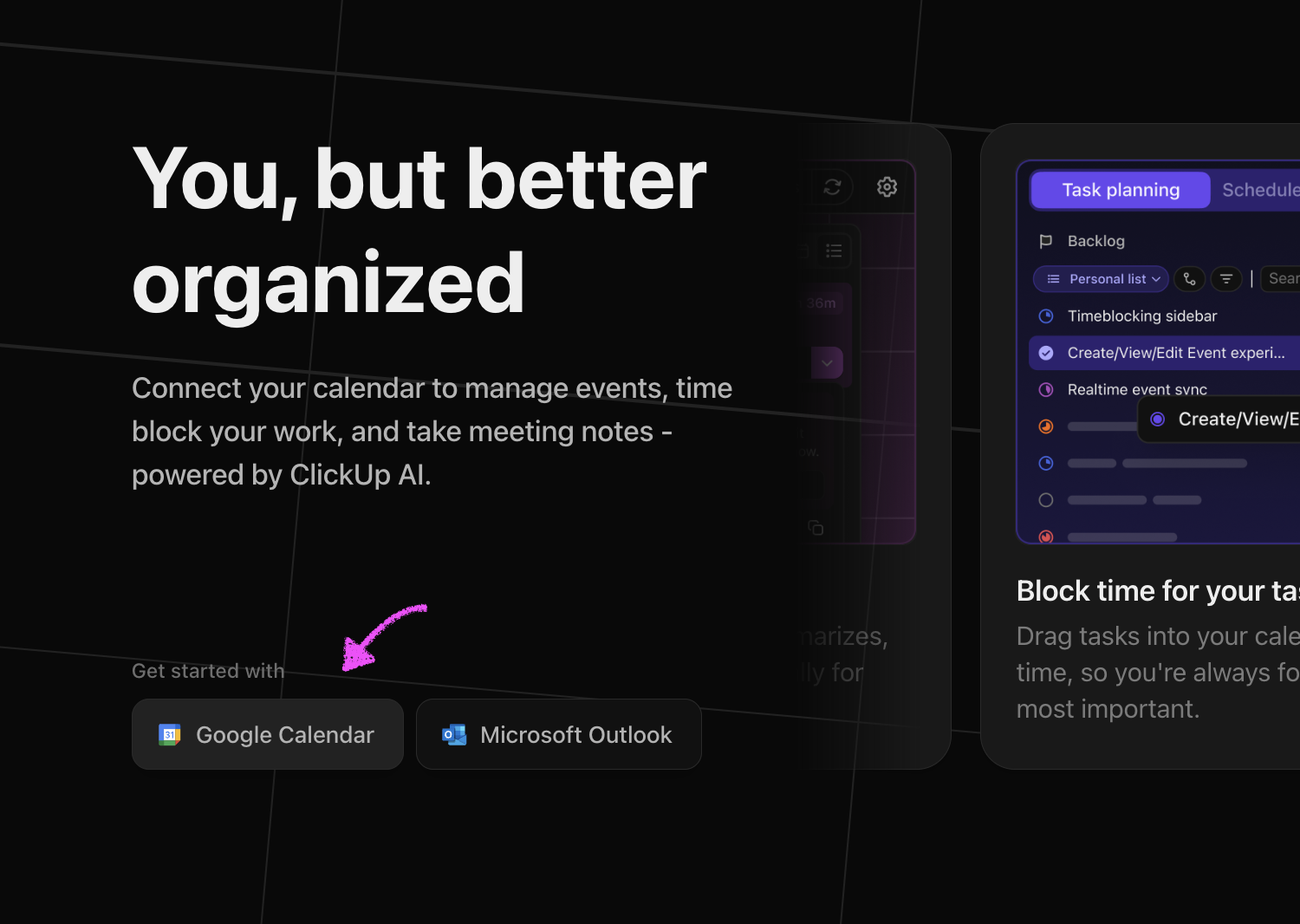
The first time you visit the Planner, you'll be prompted to set up a calendar integration. Click the "Google Calendar" button to integrate with your calendar. Once you've done this your scheduled meetings will appear in ClickUp.
Customizing timezone display
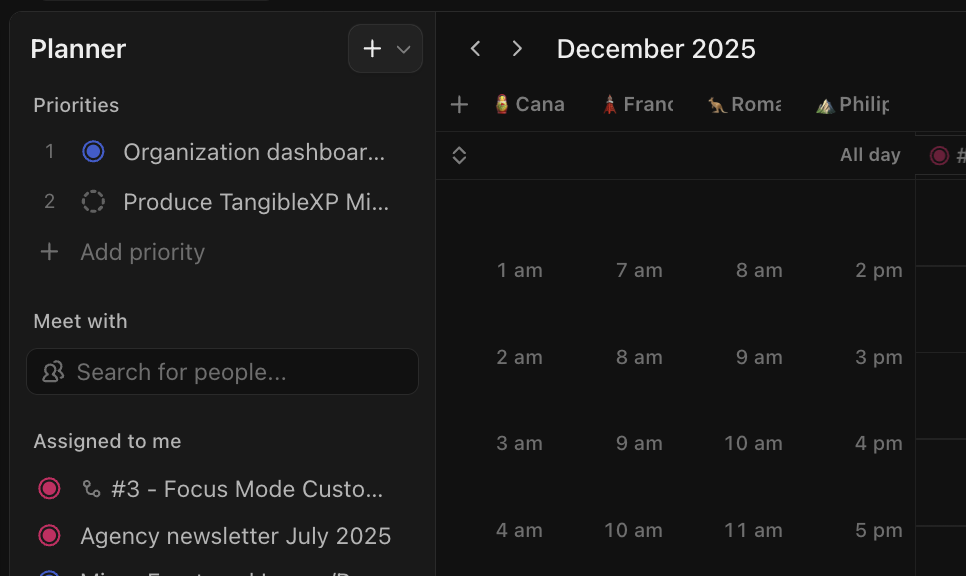
You can add additional timezones to the calendar by clicking the small "+" icon above the planner's time column.
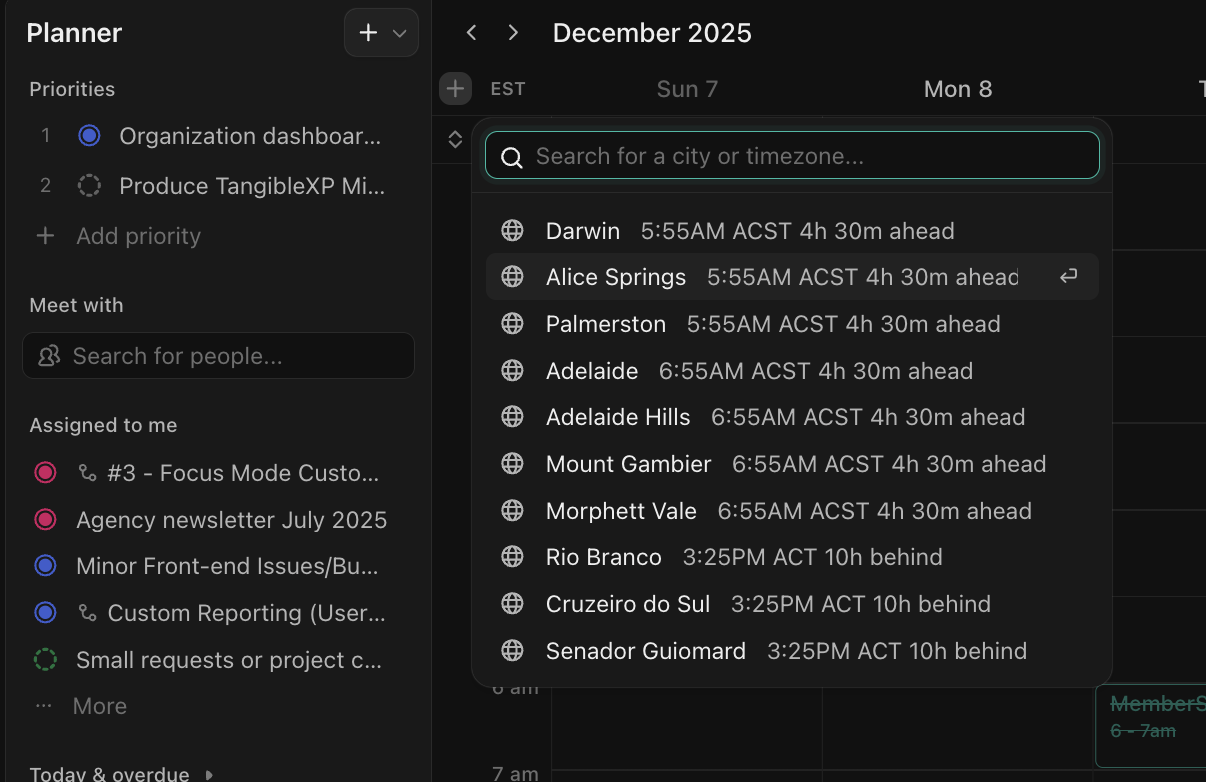 Once you've searched for a timezone and added it, you can customize its label by clicking it. This can be helpful for project managers working with team members across several locales.
Customizing your work hours
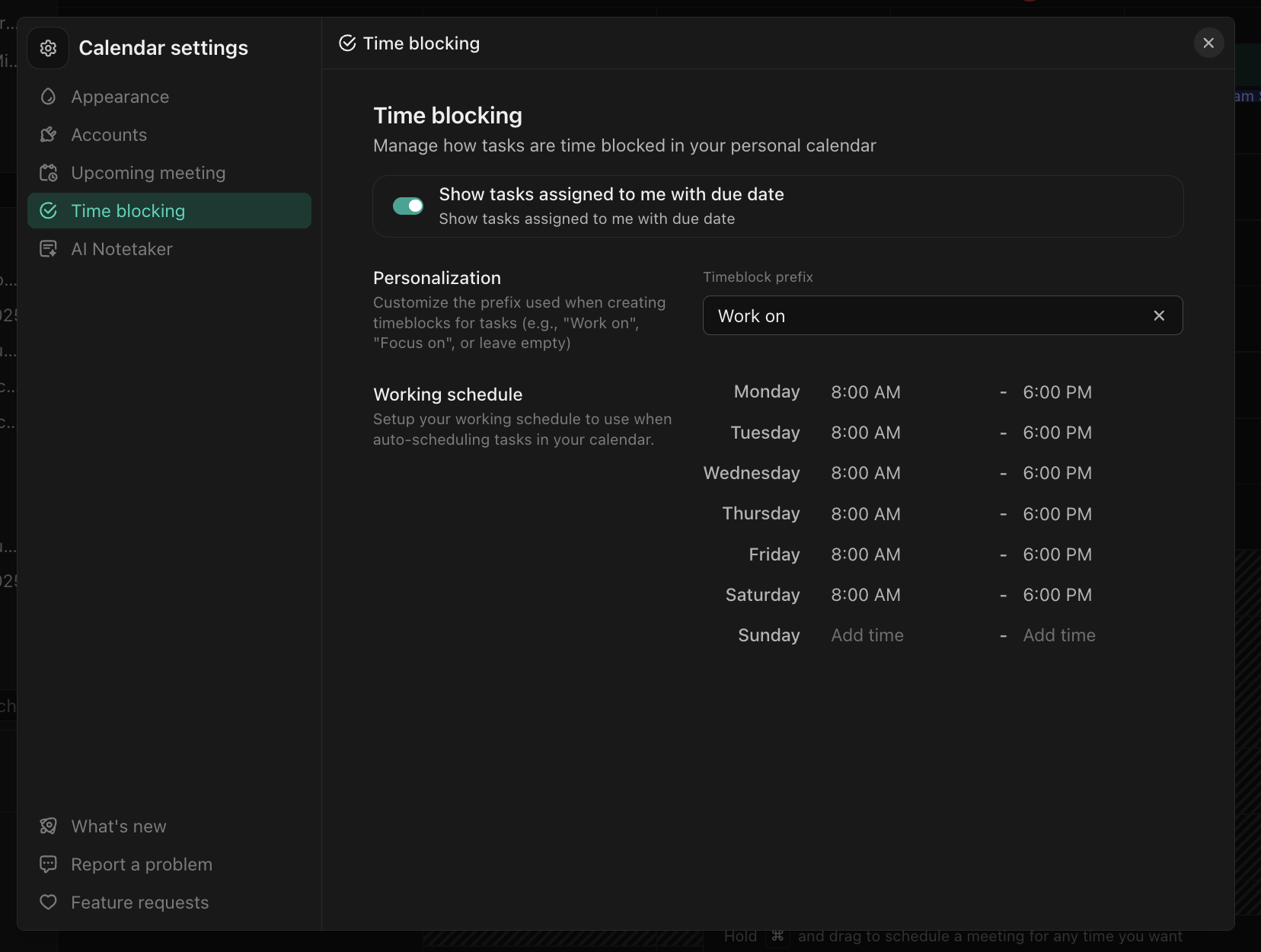
To ensure that AI planning features work correctly and that team members don't schedule things outside of your active hours, customize your work hours according to your usual weekly availability. These settings can be found in Planner settings -> Time Blocking
Using Planner
Scheduling task focus time
To plan your day, drag a task from left sidebar. If you schedule focus time for a task with other assignees, they'll recieve a Google Calendar invitation, and see the scheduled focus time in their Planner.
Scheduled Tasks differ from Scheduled Focus Time. Tasks with scheduled start and end dates/times will appear in planner, but will not be synced to Google. Focus time start and end dates can be adjusted without affecting the attached task. Focus time can be deleted without impacting the attached task. Tasks with start and end times will be completely deleted if deleted from Planner, so be careful!
Scheduling meetings
When you select someone in the 'Meet with" dropdown and drag a task onto or create a new event on the planner calendar, the event will show up for them and they'll be invited via Google Calendar.
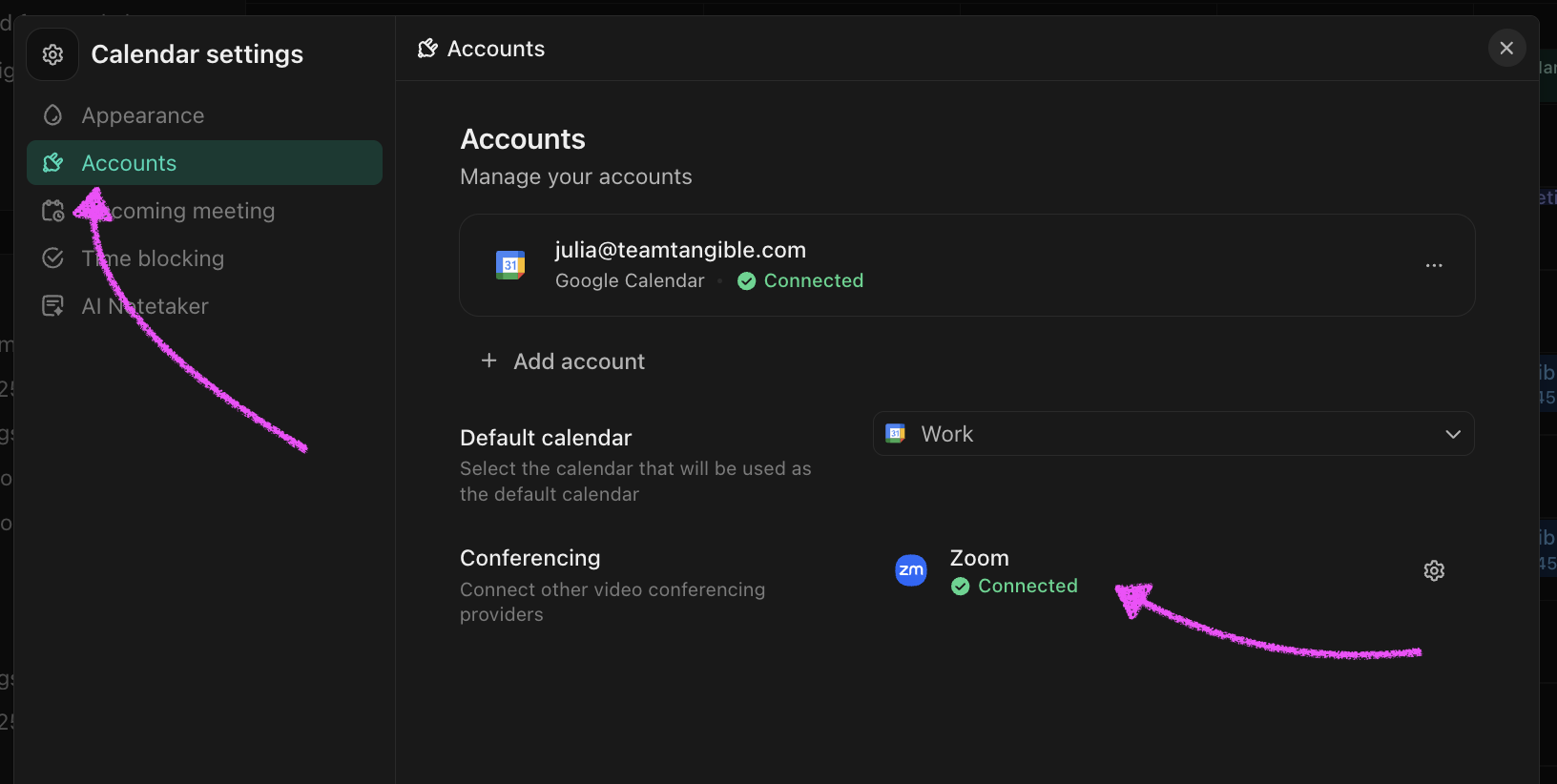
If you'll be using Planner to schedule meetings, be sure to configure the Zoom integration, or it'll default to Google Meet for scheduled meetings