Usage
Granting access to this documentation
All Tangible Google Workspace users have access to this documentation via SSO. If you need to grant access to a team member who doesn't have a Google Workspace account, you can manually add them to the list of approved emails for One-time passwords by editing policy 21f44467-9ce9-47a4-965f-fbe35e5a2de9 in Cloudflare.
Authoring on Docusaurus
- Read Docusaurus's documentation on supported Markdown features
- Intro to Markdown
- Markdown Cheatsheet
Using the Card or CardGallery components
Card Gallery
- Name your file with the
.mdxfile extension to enable support for JSX. - Add the component import below your doc frontmatter.
import CardGallery from '@site/src/components/CardGallery/CardGallery';
- Add and configure the component:
<CardGallery
  as="li" // Support for div or li for item wrappers
  titleAs="h3" // Tag for title display. Avoid using h1. Supports any input, but div/h2/h3/h4 are suggested
  fallbackEmojis={['📘','📕','📙','📗']} // One or multiple emojis applied to cards without one specified, chosen based on title hash
  cards={ // Each object in the array is one card
    [
      {
        title: 'My Card Title',
        description: 'My Card Description.',
        link: { href: 'https://test.com', label: 'Learn more' },
        secondaryLinks: [{ href: '/docs/onboarding', label: 'View doc' }],
        emoji: '📘',
      },
    ]
  }
/>
Card
- Name your file with the
.mdxfile extension to enable support for JSX. - Add the component import below your doc frontmatter.
import CardGallery from '@site/src/components/Card/Card';
- Add and configure the component:
<Card
    titleAs='div' // Tag for title display
    title={frontMatter.title} // Title text. Pull from frontMatter or provide a string wrapped in quotes
    description={frontMatter.description} // Description text. Pull from frontMatter or provide a string wrapped in quotes
    emoji='💬' // Optional, for decorative purposes
    link={{ href: 'http://test.com', label: 'Learn more' }} // A single object to display a button
	secondaryLinks={[ // An array of objects to display links after description
        { href: "https://test2.com", label: "External link" },
        { href: "/docs/onboarding", label: "Doc link"}
    ]}
    displayMode='inline' // Display mode, defaults to stacked
/>
Embedding a YouTube video
- Name your file with the
.mdxfile extension to enable support for JSX. - Add the component import below your doc frontmatter.
import YouTubePlayer from '@site/src/components/YouTubePlayer';
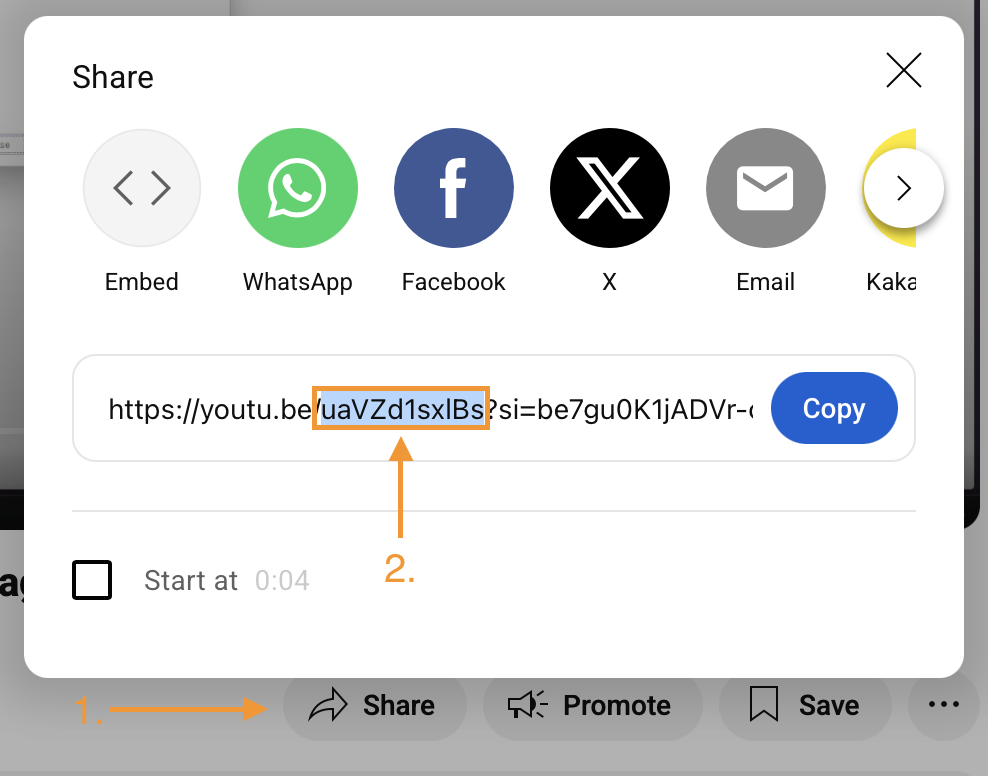
- Add and configure the component. It requires at minimum a specified
videoIdorplaylistIdvalue. Specifying a title for the embed is good practice for accessibility.
<YouTubePlayer videoId="uaVZd1sxlBs" title="Laragon Tutorial 4: Database Management in Laragon" />
To get a video or playlist ID, click the share button on the YouTube video and copy the first portion of the share URL.