New account onboarding
New clients have filled out our contact form or directly emailed us at hello@teamtangible.com. The team member responsible for overseeing the sales inbox should:
- Respond to the client, addressing any immediate questions about our capabilities,
- Prompt the client to schedule a call with a strategist,
- Create a new "account"-type task in the "Pre-meeting" status with the client name as the task title in the Client accounts ClickUp list.
🙋 Project manager assignment
After the call:
- The strategist will send a message to #team-delegation-project-managers with:
- an icon indicating urgency (a red circle 🔴 if the client should be treated with more care than usual due to high potential),
- the client name (or their business's name),
- a link to the call recording in Build Better,
- and a link to the sales inbox thread.
🔵 - Client Name - https://buildbetter.ai/call-link - https://tangibleservice.com/link-to-sales-thread
- If no project manager has claimed the account within 24 hours, the channel manager will assign the account.
📝 Creating Sales Call notes
After the PM has been assigned a new client account:
- The PM reviews the Sales Call on BuildBetter
- The PM makes notes about key project details, tasks, goals, and client expectations.
Notes structure
- ⛳️ Short-term tasks:
- Suggested approach: where there any specific recommendations for implementation offered by the strategist?
- Ballpark estimates: what expectations, if any, did the strategist set about lift, hours, cost, etc.?
- 🏌️♂️ Long-term goals:
- Business goals: how will their business benefit/grow from the new functionality?
- Pain points: what's bothering the client, what problems need fixing?
- Areas of unknowns: where do we need to gather more information, or need more certainty?
- Suggested approach: where there any specific recommendations for implementation offered by the strategist?
- Ballpark estimates: what expectations, if any, did the strategist set about lift, hours, cost, etc.?
- 🤝 Expectations and commitments: What communication is the client expecting? Did we say we'd follow up with anything, on any particular schedule?
- 🙋♂️ Questions: are there any things that the PM needs further context about from the strategist or the client, because information is missing or something is unclear?
- 📝 Other notes: Is there any other important information the client provided us about themselves, their business, their platform, their experiences with other service providers, their preferences, their expectations, etc?
Generated notes
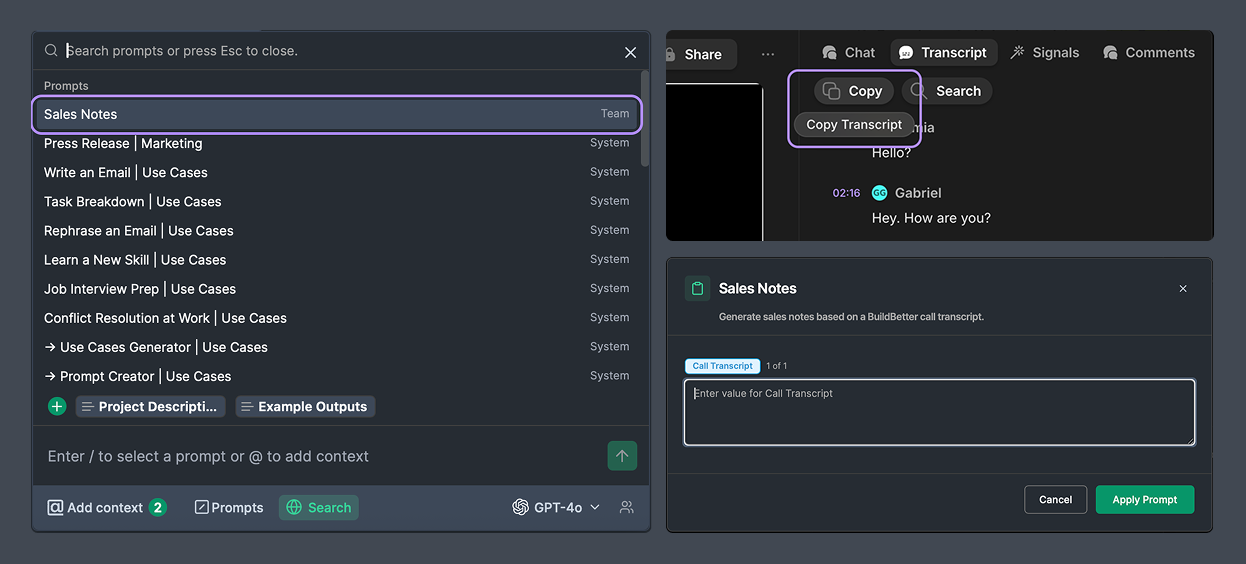
BuildBetter or Team GPT summarization can be used to create a starting point for call notes based on the call transcript.
While very helpful, AI-generated content and transcripts must always be carefully reviewed, and should be used only as a supplement to notes taken by the PM while they listen to the call.
You can generate call notes in the Sales Calls project to benefit from pre-loaded context on Tangible, how we work, and what format is needed for the Sales Call Notes. Use the "Sales Notes" prompt from the prompt library, and you'll be offered a field in which to paste the call transcript from BuildBetter.
Where to put your notes
The Team-GPT output can be placed in a document in the Sales Call folder in the shared Tangible Client Projects Drive. Your initial notes from watching the call should be added to this document as well.
Read through the entire output. Make sure that nothing important is missing, and that nothing is inaccurate. Incorporate your notes, if the AI summary missed the points you took note of in your first pass.
Once the notes are ready, copy a share link and add it as a reply to the task message in #team-delegation-project-managers.
BuildBetter Data
- Tag the client call with the company name.
- Ensure that the call participants are properly tagged.
👋 Introduction to the Client
The PM sends the client an email introduction covering the key takeaways pulled from the call, coordinates with the client to get a signature on the General Services Agreement, and reminds the client about our billing practices and other details like payment methods, etc. (refer to email templates).
At this point, the PM should move the client's "account" task in the Client accounts ClickUp list to the "In Negotiation" status.
🏗️ Creation of required structures across tools
Once it's clear that the client is actually going to work with us, there are some important management structures to create in various tools to accomodate information, communication, and tracking with regards to the client and their projects. When creating folders, spaces, channels, be sure to use a consistent, and one that will be easy for team members to find with the context that they have. This will sometimes mean using a bit of keyword stuffing.
Google Drive
The PM creates a Client Project Folder in the shared Tangible Client Projects Drive with the Client Account Name as its name.
ClickUp
They create a new project in ClickUp
- Learn more about Tangible's ClickUp data structure here
- Use the "Tangible’s default client space" template
Use the tool below to create an icon for the client's ClickUp space.
Logo Profile Image Generator
Slack
The PM creates a Slack channel with the prefix #progress- to represent the client relationship.
- Invites relevant team members to the channel (ie. Strategist(s), Gab, Developers)
- Create a canvas called “Project Data” and take note of project information such as:
- Contact Details
- Signed Agreement
- Hosting Agreement
- ClickUp Project link
- Syncing Projects Between Hubstaff and ClickUp
- Client Credentials
- Hosting Details
- Add main goals or main action points
🛠️ Tools and links
Sales Inbox
New clients usually contact us via the Sales inbox.
#team-delegation-project-managers on Slack
After a sales call, the strategist is responsible for posting a task message to this channel. PMs should claim accounts here.
Sales Call Folder
Notes on sales calls with clients live in the sales call folder in Google Drive.
BuildBetter
Notes on sales calls with clients live in the sales call folder.
Team-GPT Sales Calls Project
This folder is loaded up with context about how the AI agent should format notes, and about Tangible Inc.
Project Management Client Account list
A client relationship tracker in ClickUp