Git authentication
SSH is the recommended method for authenticating with GitHub and Bitbucket. It streamlines Git workflows without requiring passwords and is necessary to take full advantage of Docker containers.
A single SSH key can be used for all Git projects where you have access. You don't need to create a separate SSH key specifically for Tangible projects — your existing key will work for any repository you're authorized to access.
Test your connection
First, check if you're already connected:
GitHub:
ssh -T git@github.com
Bitbucket:
ssh -T git@bitbucket.org
- If this is your first time connecting, accept the server's fingerprint when prompted
- If you see a successful authentication message, you're all set and can skip the rest of this guide
- If you get "permission denied", continue below to set up your SSH key
Fow Windows users, make sure you check your connection in WSL as well, because Docker containers will use your WSL ssh credentials. If your connection works in Windows but not WSL or vice versa, see Copy Keys Between Windows and WSL
Check existing SSH keys
Check if you already have an SSH key:
cat ~/.ssh/*.pub
If you see text starting with ssh-ed25519 or ssh-rsa, you have a key. Copy the entire string and skip to adding your key.
If you have some keys that you don't recognize, it might be a good idea to start fresh - backup all the keys somewhere, remove them and setup one key per account.
If you see "No such file or directory", continue to create a new key.
Create a new SSH key
Generate a new Ed25519 key:
ssh-keygen -t ed25519 -C "your_email@example.com"
Press Enter to accept the default file location, you can leave the passphrase empty if this is your personal computer.
Display and copy your public key:
cat ~/.ssh/id_ed25519.pub
If you need to authenticate multiple accounts (work/private/client) you will need to generate the keys for each account email and store them in separate key files (the system will prompt the file name on each key creation).
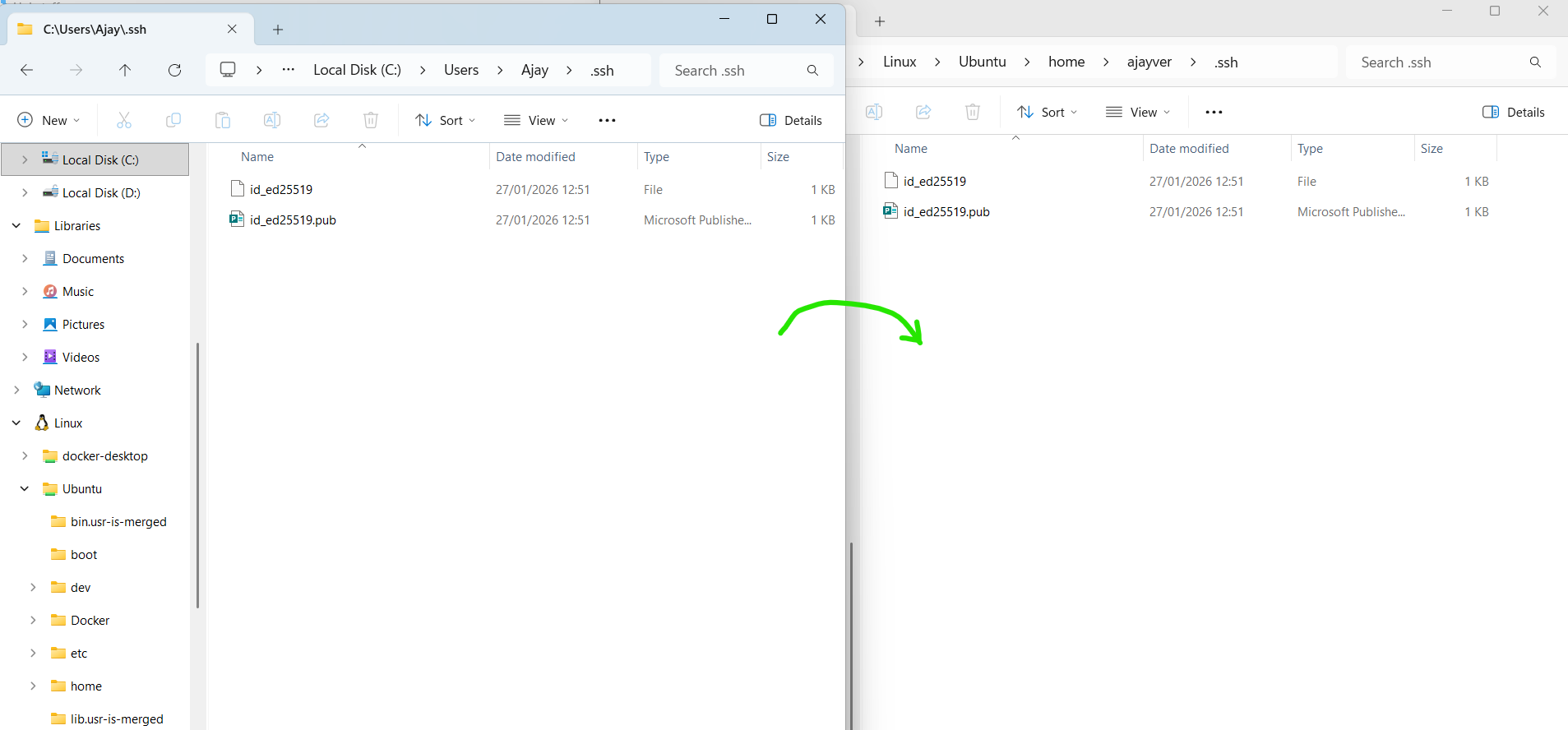
Copy keys between Windows and WSL
If you use both Windows and WSL, copy your keys to maintain consistency:
Copy the files manually from \\wsl.localhost\Ubuntu\home\[username]\.ssh to C:\Users\[username]\.ssh or vice versa.
Adding your SSH Key to GitHub
- Go to GitHub Settings → SSH and GPG keys
- Click New SSH key
- Enter a descriptive title (e.g., "Work Laptop")
- Paste your public key into the "Key" field
- Click Add SSH key
- Confirm with your GitHub password if prompted
Adding your SSH key to Bitbucket
- Go to Bitbucket Personal Settings → SSH keys
- Click Add key
- Enter a label (e.g., "Work Laptop")
- Paste your public key into the "Key" field
- Click Add key
After adding your keys, run the test commands again to verify everything works!