Work Hours and Availability
Share your working hours via Google Calendar
Our team is spread all over the world, which makes it tough to know who's currently working and when you can expect a response. To make sure we all know everyone's work schedule, team members should set and maintain their working hours in Google Calendar.
- Create a new "working location" in Google Calendar on your official Tangible Google account.
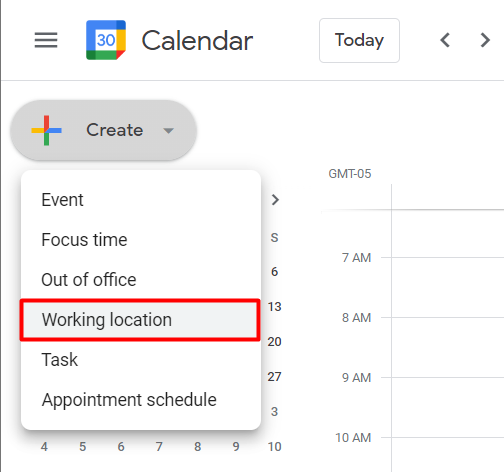
- Select "add time."
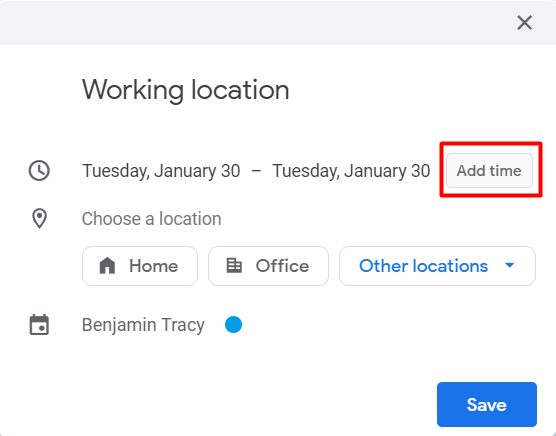
- Set your working time. This is the period on each day that our team can expect you to be online, available, and responding to messages on Slack. In addition to start and end times, you'll also want to select when this should repeat, which is probably "every weekday" unless you want to have different availabilities on different days. You can also set a custom location name, such as "online" shown in the screenshot below.
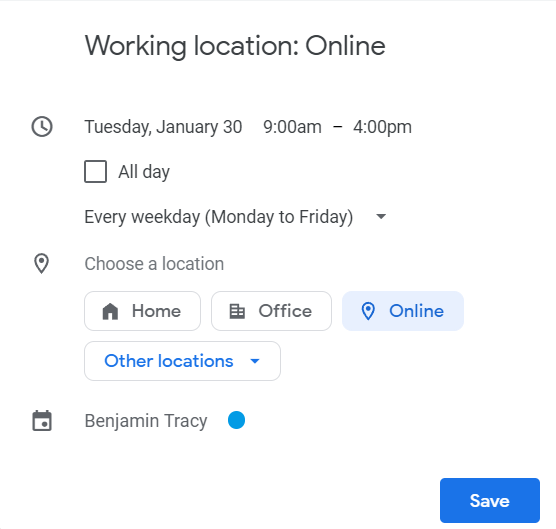
That's all there is to it!
Set your working hours in Slack
Slack should automatically detect your system timezone, but if it's incorrectly detected you can manually update it by navigating to Preferences -> Language & Region.
In Preferences -> Notifications, under the Notification schedule heading, you can manually adjust the hours within which you'd like to recieve notifications. Slack will mute notifications outside of this window. When sending a direct message to you, other team members can override Slack's Do Not Distrub mode to notify you about an urgent message once per day.
Read Slack's DND feature documentation
Viewing team members' timezones in Slack
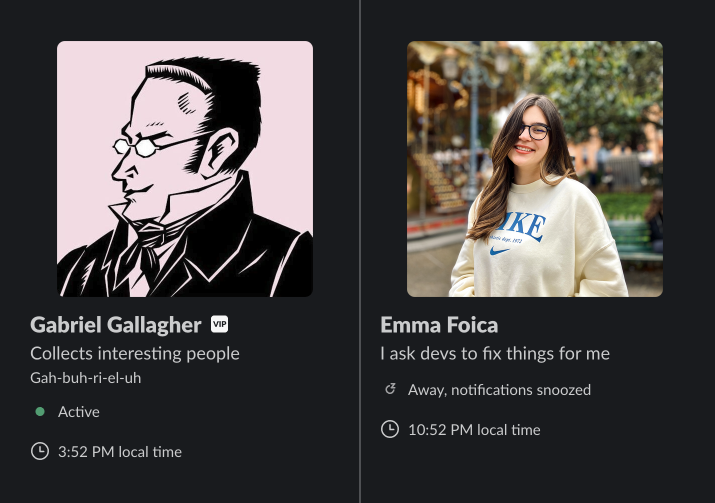
Slack displays timezone, current activity status, and current notification status in users' profile cards. To view a user's profile on Slack, click on their name above a message they've sent or search for them in the searchbar and click the "View Profile" action.